Customized Bash Prompt
1 Introduction
I have used Bash for the vast majority of time as a Unix / Linux user. It is always the default shell and sometimes I don’t have access to change it. Modern shells like Zsh and Fish appear to offer better aesthetics and more information; however, we can also customize the Bash prompt. Here I will show some preferred customizations; Figure 1 displays the results after implementing them.
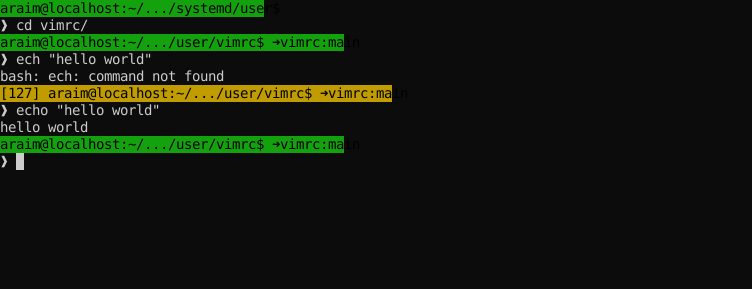
The complete script is here. To activate it in a Bash session, use the source command as follows.
source /path/to/promptTo apply it to new sessions, include the line above in your ~/.bashrc file.
2 Environment Variables for the Prompt
The prompt can be set by manipulating the PS1 and PS2 environment variables. PS1 is the primary prompt and PS2 is the “continuation” prompt which is shown when a command spans more than one line. There are also PS0, PS3 and PS4 prompts used in other particular situations, discussed in the bash manual page.
The defaults for PS1 and PS2 are usually something like the following. There may also be codes added to make the display colorful, but we will omit them for now.
PS1="[\u@\h:\w]\$ "
PS2="> "
[araim@localhost:~/.config/systemd/user]$
The prompts appear as follows.
[araim@localhost:~/.config/systemd/user]$ echo "hello world"
hello world
[araim@localhost:~/.config/systemd/user]$ for i in 1 2 3
> do
> echo "hello world $i"
> done
hello world 1
hello world 2
hello world 3
[araim@localhost:~/.config/systemd/user]$
3 Placeholders and Aesthetic Prompt Symbol
The strings \u, \h, and \w are placeholders for the username, hostname, and current working directory. See the PROMPTING section of the Bash manual page for the list of available placeholders.
The typing area can start to feel cramped if there is a lot of information in front of it, so let’s include a newline after the information. For aesthetics, let’s also replace the ascii > with the unicode glyph ❱ “Heavy right-pointing angle bracket ornament” which has hex code 2771.
PS1='\u@\h'
PS1+=':'
PS1+='\w'
PS1+='\$'
PS1+='\n'
PS1+='❱'
PS1+=' '

PS2="❱ "
This is how it looks now.
araim@localhost:~/.config/systemd/user$
❱ echo "hello world"
hello world
araim@localhost:~/.config/systemd/user$
❱ for i in 1 2 3
❱ do
❱ echo "hello world $i"
❱ done
hello world 1
hello world 2
hello world 3
araim@localhost:~/.config/systemd/user$
The \h element can become very long for deeply nested paths. We can limit the number of parent directories in the display using the PROMPT_DIRTRIM environment variable.
araim@localhost:~/.config/systemd/user$
❱ mkdir -p very/long/path
araim@localhost:~/.config/systemd/user$
❱ cd very/long/path
araim@localhost:~/.config/systemd/user/very/long/path$
❱ PROMPT_DIRTRIM=3
araim@localhost:~/.../very/long/path$
❱
4 Custom Information with Function Calls
If our current working directory is within a Git repo, it could be useful to have the repo name and current branch displayed on the prompt. Let’s define a Bash function to gather that information.
prompt_git() {
    basedir=$(git rev-parse --show-toplevel 2> /dev/null) || return
    repo=$(basename ${basedir})
    branch=$(git rev-parse --abbrev-ref HEAD)
    echo -ne " ➜${repo}:${branch}"
}
The arrow glyph ➜ is the unicode “Heavy round-tipped rightward arrow” character with hex code 279C. Include a call to prompt_git in our primary prompt.
PS1='\u@\h'
PS1+=':'
PS1+='\w'
PS1+='\$'
PS1+='$(prompt_git)'
PS1+='\n'
PS1+='❱'
PS1+=' '
❱ cd ~/.config/systemd/user
araim@localhost:~/.config/systemd/user$ ## Not a git repo
❱ cd vimrc/
araim@localhost:~/.../systemd/user/vimrc$ ➜vimrc:main ## A git repo
❱Another useful piece of information would be the return code $? which was set by from the previous command. But let’s only display if is something other than zero.
prompt_ecode() {
    [[ "$1" == "0" ]] || echo -ne "[$1] "
    return $1
}
The function prompt_ecode takes one argument which is expected to be the value of $? set by the previous command. The caller must ensure we get this information before $? is reset by another operation. We return $1 to put the variable $? back to the same state, perhaps for another function to use it.
There is also a PROMPT_COMMAND environment variable that can be used to take some action before PS1 is displayed. This can also be used to check the last command’s return code. However, if PROMPT_COMMAND is doing something to set the return code in $?, it may interfere with prompt_ecode.
PS1='$(prompt_ecode $?)'
PS1+='\u@\h'
PS1+=':'
PS1+='\w'
PS1+='\$'
PS1+='$(prompt_git)'
PS1+='\n'
PS1+='❱'
PS1+=' '
Here is how it looks.
araim@localhost:~/.config/systemd/user$
❱ cd vimrc
araim@localhost:~/.../systemd/user/vimrc$ ➜vimrc:main
❱ ech "hello world"
bash: ech: command not found
[127] araim@localhost:~/.../systemd/user/vimrc$ ➜vimrc:main
araim@localhost:~/.../systemd/user/vimrc$ ➜vimrc:main
❱ echo "hello world"
hello world
❱
5 Colors
Let’s apply some basic colors. This will help to distinguish the prompt from other activity in the terminal. Define environment variables for three colors and insert them into the primary prompt.
COL_FG='\033[38;5;016m'
COL_BG='\033[48;5;002m'
COL_OFF='\033[0m'
PS1="\[${COL_FG}${COL_BG}\]"
PS1+='$(prompt_ecode $?)'
PS1+='\u@\h'
PS1+=':'
PS1+='\w'
PS1+='\$'
PS1+='$(prompt_git)'
PS1+="\[${COL_OFF}\]"
PS1+='\n'
PS1+='❱'
PS1+=' '
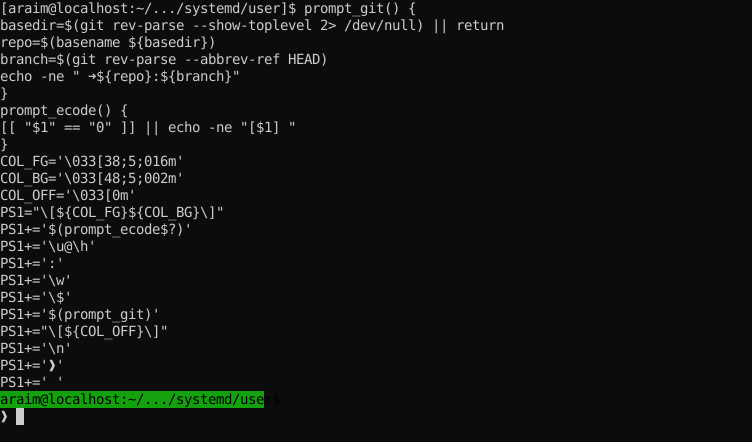
Here, \033[ is an ASCII control sequence, 38;5;016m sets the foreground color (38;5) to black (016), and 48;5;002m sets the background color (48;5) to green (002). The charater m signifies the end of the sequence. Color codes are wrapped in \[ ... \] to mark them as nonprintable characters: if this is omitted, the terminal will be glitchy when we are editing commands and traversing the command history. The website colors.sh provides a nice interface to browse terminal colors find the corresponding codes. Figure 2 shows the result so far.
6 Informative Colors
It may be useful to change the color when there is a non-zero return code from the previous command, to serve as a visual indicator. We add another function to handle the colors as follows. Again, argument $1 should be the return code from the previous command; we return it in case we need it subsequently.
prompt_color() {
    COL_FG="\033[38;5;016m"
    COL_CLR_BG="\033[48;5;002m"
    COL_SET_BG="\033[48;5;003m"

    if [ "$1" == "0" ]; then
        echo -ne "${COL_FG}${COL_CLR_BG}"
    else
        echo -ne "${COL_FG}${COL_SET_BG}"
    fi

    return $1
}
Now the prompt background changes to olive / yellow if a nonzero status code was set by the last command.
Remove the hard-coded colors from the beginning of PS1 and call prompt_color instead.
PS1='\[$(prompt_color $?)\]'
PS1+='$(prompt_ecode $?)'
PS1+='\u@\h'
PS1+=':'
PS1+='\w'
PS1+='\$'
PS1+='$(prompt_git)'
PS1+="\[${COL_OFF}\]"
PS1+='\n'
PS1+='❱'
PS1+=' '
This should result in the prompt from Figure 1.